
2D nesting for CNC router & laser workshops · Windows
Every piece
in place.
Wafeno nests irregular parts on your sheets by their real shape, holes included, and hands back clean outlines for your CAM.
Closed Alpha · no public download or sales yet
- Verified engine output
- Sheet 1 of 2
- 50 parts
- 6 inside holes
- Min. gap 7 mm
Synthetic demo drawing. Every position comes from a real Wafeno run and was checked: no overlaps, spacing kept.
Boxes vs. real shapes
Same parts. Same sheet.
Treat every part as the rectangle around it and the sheet runs out of room. Nest the real shapes and every part fits, some of them inside holes.
How this comparison was made
This sample only. For the box reference, every part of the verified sheet is replaced by its bounding rectangle and packed by six standard rectangle methods over 406 part orders. The best result is shown. It uses the same 2440 × 1220 mm sheet, 7 mm spacing, 18 mm margin and the same rotation rights as the Wafeno run (90° steps, no mirroring). The rectangles alone take more area than the sheet offers: even a perfect rectangle packing could hold at most 45 of these parts. The reference is not another program and not a typical user result, and it does not predict savings on your own drawings.
Inside Wafeno
The real program, with a demo drawing.
One window from drawing to export. Numbers on the screenshot match the list.
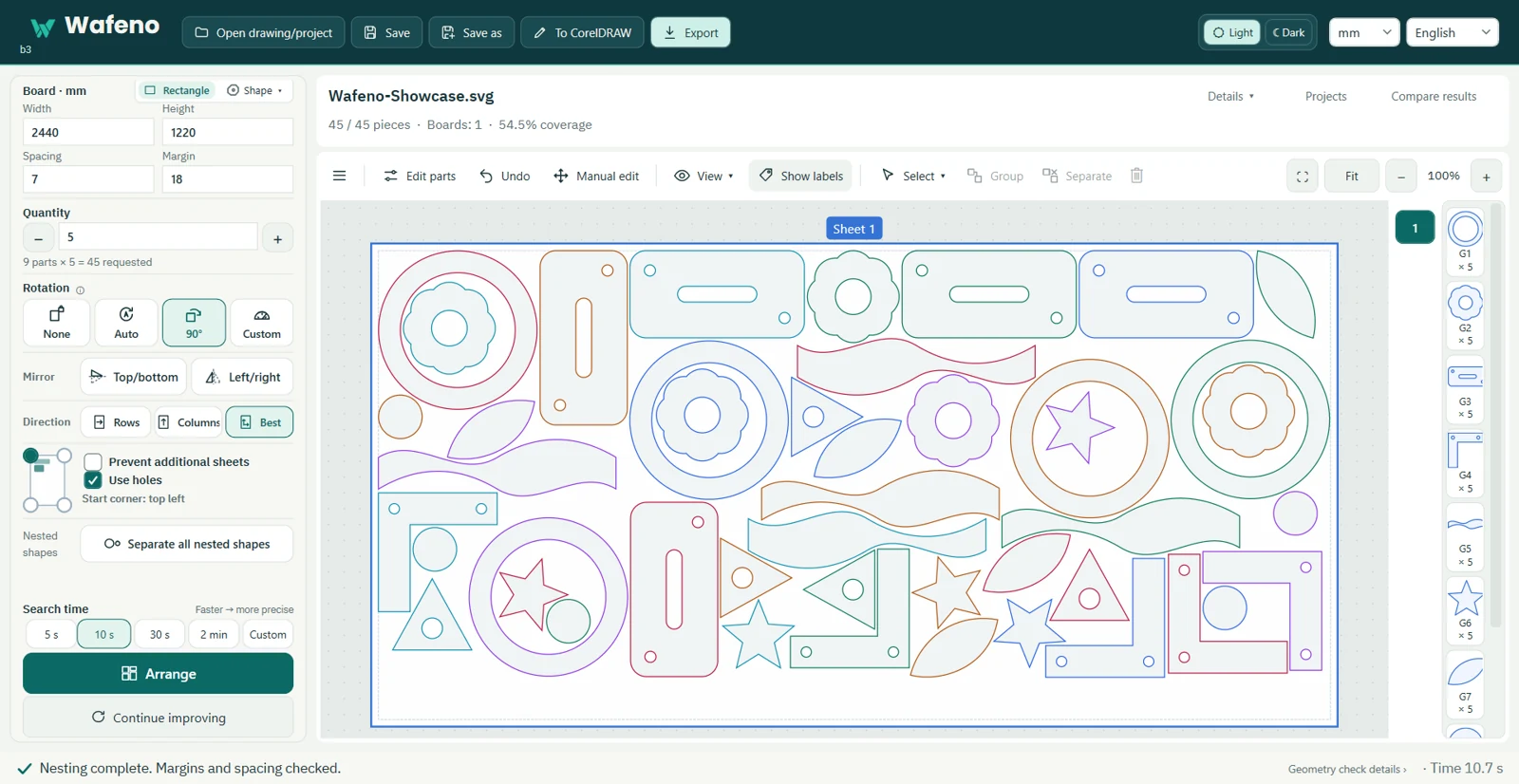
- Open SVG or DXF, a saved project, or send shapes from CorelDRAW.
- Set the sheet size, spacing and margin.
- Set quantities, rotation, mirroring and nesting inside holes.
- Review the result and move or rotate parts by hand.
- Every run ends with a check of margins and spacing.
- Export SVG with original curves, flattened SVG or DXF outlines.
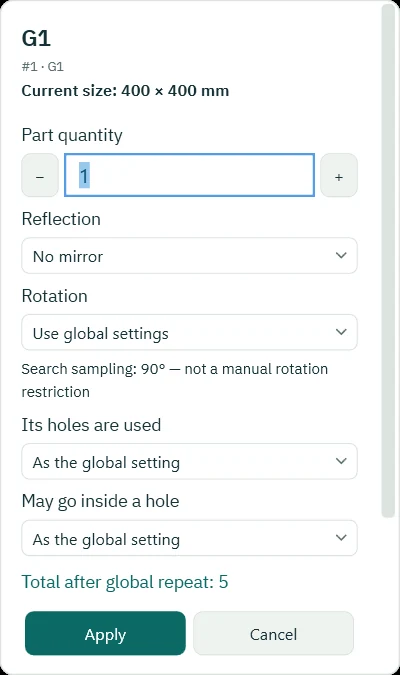
Per-part decisions
Rotation and mirroring can be set for each part, and so can whether smaller parts may be nested inside its holes.
Your workflow
Drawing in. Outlines out.
In
- SVG
- DXF
- Wafeno project
- CorelDRAW, sent directly
Wafeno on Windows
- Nest across sheets
- Review and adjust by hand
- Save and reopen projects
Out
- SVG with original curves
- Flattened SVG
- DXF outlines
Wafeno prepares drawing files. Toolpaths, machine settings and cutting stay in your CAM; Wafeno does not generate G-code.
Tested, and what is not claimed
- Drawing input
- SVG, DXF and Wafeno project files.
- Drawing output
- SVG with original curves, flattened SVG and DXF outlines. Wafeno does not generate G-code.
- CorelDRAW
- Tested with CorelDRAW 2017, 2022 and 2025, and Technical Suite 2025. Other versions are not claimed as tested.
- Windows
- Windows 10 tested. Windows 11 verification remains open.
- Machine workflow
- Review exports in the target CAM application. File support is not a promise of compatibility with every machine.
- CorelDRAW drawing checks
- A closed path that crosses itself can stop transfer of the entire drawing from CorelDRAW. Correct that path in the source drawing before sending it again.
Your drawings
Your drawings.
Your computer.
Wafeno does not automatically upload your drawings. Crash-recovery drafts are kept locally for 7 days. Support files exclude the drawing by default.
Read the privacy noticeGood to know
A few practical answers.
Does Wafeno run the cutting machine?
No. Wafeno exports drawing outlines. Review them in your CAM application, prepare toolpaths and verify the job before cutting.
Can I download or buy it now?
No. Wafeno is in a Closed Alpha with a limited group of testers, and there is no public download, checkout or pricing yet. To ask about joining the trial, write to contact@wafeno.com.
Which drawing files can I use?
SVG and DXF drawings, plus saved Wafeno project files. Export options include SVG and DXF.
Can I control rotation and quantities?
Yes. Set quantities and job or per-part rotation rules, including no rotation, automatic, 90° steps or custom angles.
Are my drawings uploaded automatically?
No. Drawings stay on your computer. Local crash-recovery drafts are retained for 7 days; support files exclude drawings by default.
Closed Alpha
Wafeno is in Closed Alpha.
We are opening it gradually to CNC router and laser workshops. Tell us what you cut and which drawing software you use.
- No public download or sales yet
- Activation is handled manually for each computer
- Testers get help at support@wafeno.com
Or write to contact@wafeno.com